> For the complete documentation index, see [llms.txt](https://releaseowl.gitbook.io/releaseowl-docs/llms.txt). Markdown versions of documentation pages are available by appending `.md` to page URLs; this page is available as [Markdown](https://releaseowl.gitbook.io/releaseowl-docs/releaseowl-user-guide/reports.md).
# Reports
The **Reports** section is available within the **Project View** and provides comprehensive insights into deployment activities. It includes two key reports:
* **Deployment Reports**
* **Task Reports**
These reports help teams monitor deployment progress, validate successful deployments, and maintain traceability across environments.
### Deployment Report
The Deployment Report offers detailed insights into the deployment status of User Stories, Transports, CPI artifacts, BTP artifacts, and Multiverse artifacts within the selected project.
**How to Generate the Report:**
1. Navigate to the **Reports** section in the **Project View**.
2. Click on the type of the deployment user story that you want to do.
3. Select the following parameters:
* **From Date**
* **End Date**
* **Environment**
* **Target System**
4. Click **GO** to generate the report.
**Report Details:**
The generated report displays:
* User Story identifiers
* Deployment date and time
* Environment and Target System details
* Deployment status
This report helps teams track user story deployments and confirm successful completion. You can also **export the report in PDF or Excel format**.
### Tasks
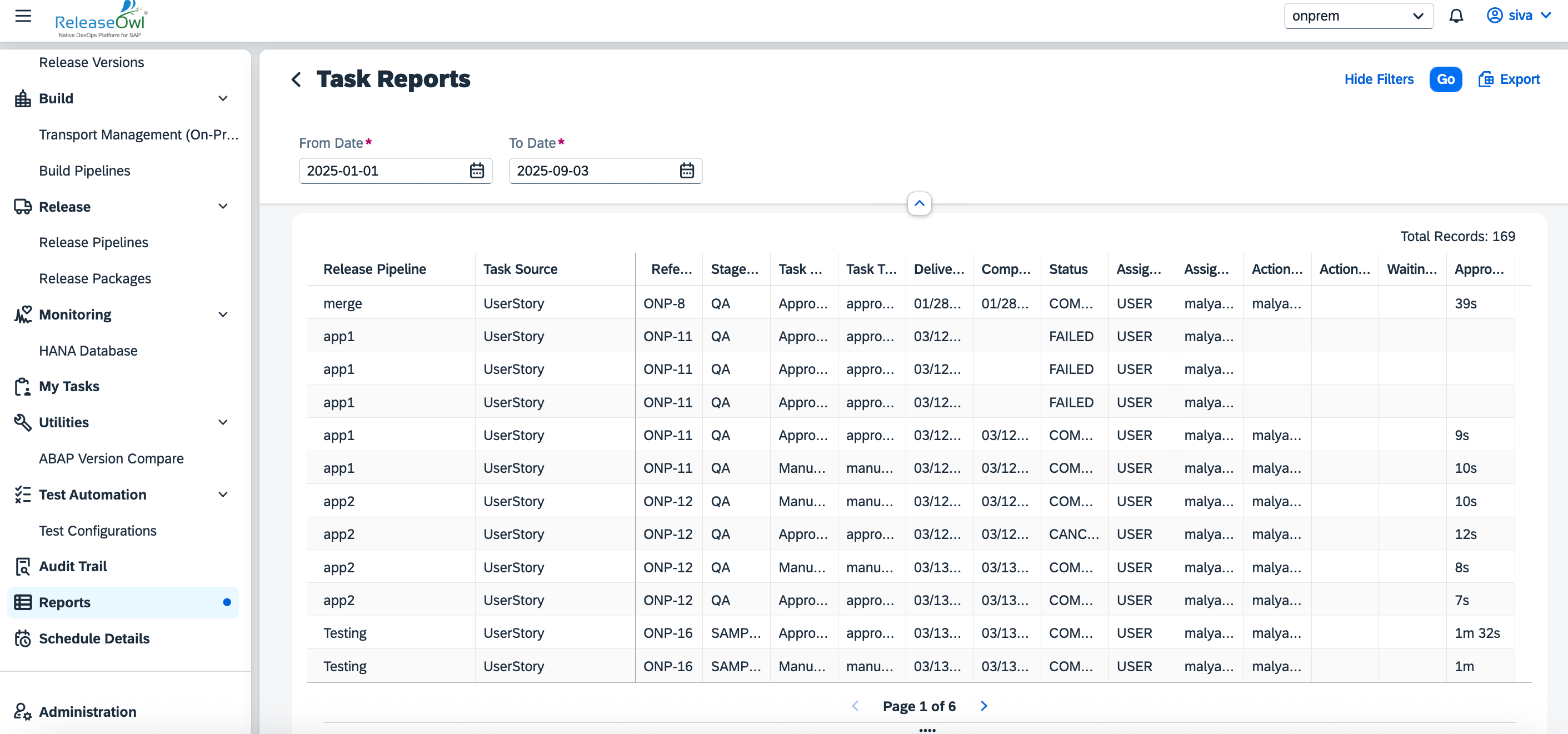
The Task Report provides an overview of all the **tasks related to User Stories, Transports, and CPI artifacts**.
**How to Generate the Report:**
1. Go to the **Reports** section in the **Project View**.
2. Click on **Task Reports**
3. Select the following parameters:
* **From Date**
* **End Date**
4. Click **GO** to generate the report. It provides details of releasepipeline, tasksource, assigne and action.