> For the complete documentation index, see [llms.txt](https://releaseowl.gitbook.io/releaseowl-docs/llms.txt). Markdown versions of documentation pages are available by appending `.md` to page URLs; this page is available as [Markdown](https://releaseowl.gitbook.io/releaseowl-docs/releaseowl-user-guide/sap-integration-suite/cpi-management/integration-advisor.md).
# Integration Advisor
The Integration Advisor in SAP Integration Suite helps streamline and accelerate integration projects by providing tools to define, customize, and manage interface content such as code lists, IDocs, message definitions, and SOA structures. It enables organizations to adapt standard integration content to meet specific business requirements, ensuring consistency and reducing manual effort across integration scenarios.
ReleaseOwl supports Integration Advisor artifact management, including synchronization and deployment operations. These operations rely on the configured **Custom Identity Provider (IDP)**, as the required functionality is accessed through browser-based APIs that are not available through standard public APIs. Before using Integration Advisor, some setup is required both in **SAP BTP** and in **ReleaseOwl** to enable access and manage integration artifacts effectively.
### **Prerequisites**
Before proceeding with Integration Advisor , ensure the following are in place:
1. **Integration Suite Created**: The **Integration Suite** must be set up within SAP Business Technology Platform (SAP BTP).
2. **API Instance Created**: An **API Instance** must be created to provide the credentials required for configuration in the **CPI Environment**.
3. SAP CPI Environment Configured in ReleaseOwl
4. **Role Collections Assigned**: To enable Integration Advisor capabilities, assign the following role collections to the **Identity Provider (IdP)**:
* `iadv-content-developer`
5. **Create the Custom Role Collection:**
* Navigate to **Security → Role Collections** in the SAP BTP Cockpit.
* Click **Create** and enter the **Role Collection Name**. Confirm by clicking **Create**.
* Once the role collection is created, select it from the list and click **Edit**.
* Under the **Roles** section, click **Add Role** and assign the required roles. Add the **Content Developer** role.
* Click **Save** to update the role collection.
### **Steps to Create a Custom Type System**
1. Navigate to **Integration Suite**.
2. Click on the **Actions** button (**...**) to open the application.
3. Click on the **Design** section.
4. Under **Design**, select **Custom Type Systems**.
5. Choose the type of system you want to create:
* **Custom Codelists**
* **Custom IDocs**
* **Custom Messages**
* **Custom SOA Messages**
6. Enter the required details and save the configuration.
### **Creating MIG and MAG in Integration Advisor**
1. Navigate to **Integration Advisor** and go to the **MIG** section.
2. Click on the **Create** button to initiate a new Message Implementation Guideline (MIG).
3. In the **Type Systems** step, switch to the **Custom** tab.
4. You will see the available **Custom Type Systems** that you previously configured (e.g., Custom Codelists, Custom IDocs, etc.).
5. Select the appropriate **Custom Type** System to proceed with creating your MIG or MAG.
### **Creating the project**
1. Go to the **Administration** page.
2. Under the **Projects** section, click on the **Create New Project** button (top-right corner).
3. Fill in the **Project Details**:
* A popup form titled **Create Project** will appear.
* Enter the required details in the form.
4. Click **Save** to create the project.
### **Environment Section**
1. The newly created project will be listed in the **Projects** table.
2. Click on **Switch to Project** and go to the **Project Settings**.
3. In the **Project Settings** page, navigate to the **Environments** tab.
4. This section displays all environments already associated with the project.
5. Click on the **+ Add** button in the top-right corner of the **Environments** table.
6. If this environment will serve as the source for deployments or synchronization, check the **Source** checkbox.
7. The newly added environment will appear in the **Environments** table with its **Name, Type, and Host URL**.
### Managing User Permissions
1. Click on the **Users** tab.
2. Click on the **edit (lock) icon** next to the user for whom you want to manage roles and permissions.
3. The **Permissions** page for the selected user will open.
4. Scroll down to the **Environments** section.
5. Check the **Deploy** checkbox for the relevant environment(s) to enable deploy access.
### Add Artifacts
1. Go to the **Build** section and click on **Integration Advisor**.
2. Click **Add Artifacts**. The system displays the available Integration Advisor artifacts in separate tabs based on the artifact type, such as:
* **MAG**
* **MIG**
3. Select the required artifacts from the respective tabs.
4. Click **Add** to import the selected artifacts into ReleaseOwl.
5. Once the process is completed, the selected **MAG** and **MIG** artifacts will be displayed in the Integration Advisor section.
**Remove Artifacts**
The **Remove Artifacts** feature allows users to remove one or more artifacts from an **Integration Advisor** project. This helps users efficiently manage project artifacts without removing them individually.
**Removing Artifacts from a Project**
1. Select the artifact(s) that need to be removed from the project.
2. Click **Remove Artifacts**.
3. Confirm the removal action when prompted.
4. The selected artifacts are removed from the project and will no longer be associated with it.
**Sync History**
The Sync History page displays details such as the synchronization status, execution time, artifacts processed, and the outcome of each synchronization activity.
To track previous synchronizations:
* Click on **Sync History** to view a detailed log of all synchronization activities performed within the project.
**Action Column**
The Sync History view includes an **Action** column that provides visibility into the type of operation performed on each artifact during synchronization.
The following actions are displayed:
* **ADDED** – Indicates that the artifact was newly added to the project during synchronization.
* **UPDATED** – Indicates that the artifact was modified and updated during a subsequent synchronization.
* **REMOVED** – Indicates that the artifact was removed from the project.
{% hint style="info" %}
**Note :** If an Integration Advisor artifact is removed while it is assigned to a User Story, the synchronization status will be displayed as **COMPLETED\_WITH\_ERRORS**.
{% endhint %}
#### Actions
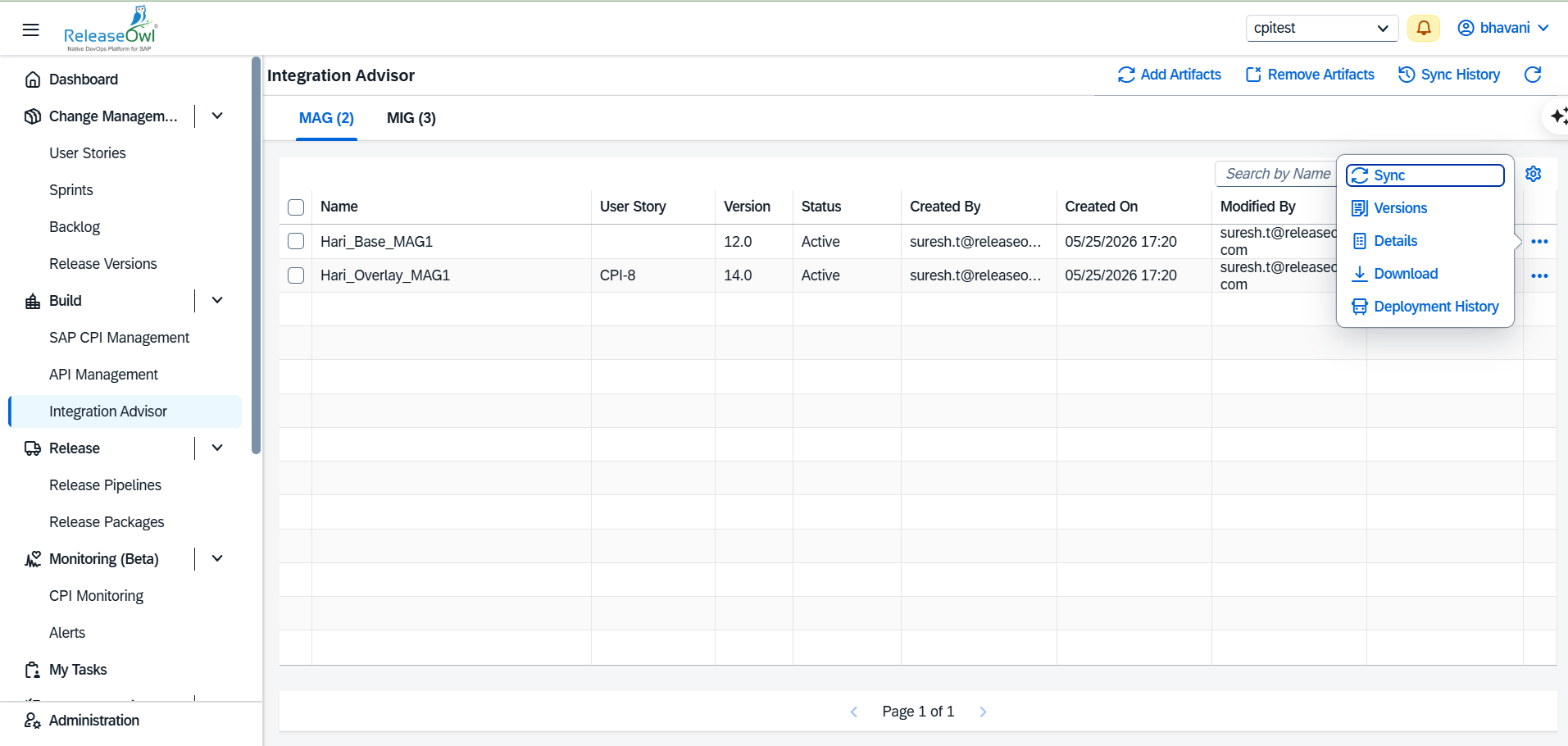
By clicking the **Actions** button, the following options are available:
* **Sync**:\
Allows individual synchronization of **Mapping Guidelines (MAG)** and **Message Implementation Guidelines (MIG)** artifacts, fetching the latest version from the source system.
* **Versions**:\
Displays the version history of the selected artifact, enabling tracking and management of changes over time.
Within the **Versions** view, you can:
* View the complete version history
* Assign or unassign a user story associated with a specific version
* Track changes across versions for audit and review purposes
* **Download**:\
Enables downloading of the selected artifact (MIG or MAG) to the local system for offline access or reference.
* **Download**
* The **Download** option under the Action menu lets you download the message or artifact locally.
* **Details**: Provides additional information about the artifact.
**Deployment History**
The **Deployment History** option in **Integration Advisor** provides a comprehensive view of all package deployment activities. This feature enables users to track deployment operations performed on a package and review the status of each deployed artifact.
### **Creating and Managing a Release Pipeline**
**1. Creating a New Release Pipeline**
1. Navigate to the **Release** section.
2. Click on **Release Pipeline** and select **Create New Release Pipeline**.
3. Enter a **name** for the release pipeline.
4. Click **+Add Stage** to create a new stage.
**2. Configuring Deployment Tasks**
1. Under the **Tasks** section, click **Add** to create a task.
2. Select the **deployment** option for the deployment process.
3. Fill in the required details:
* **Name:** Enter the task name.
* **Deploy Type:** Choose either **CPI** or **API**.
* **Select Environment:** Choose the target environment for deployment.
* **Deployment Action:**
* **Upload and Deploy:** Uploads and immediately deploys the package.
* **Upload Only:** Uploads the package without deployment.
* **Rollback Settings:** Enable rollback if needed for deployment recovery.
4. Once all required details are entered, **save** the pipeline.
5. *(Optional)* Configure **Notification Emails** to notify relevant users.
**3. Setting Up Approval Tasks**
1. Under the **Tasks** section, click **Add** to create a task and select **Approval Task**.
2. Fill in the necessary details:
* **Name:** Assign a name to the approval task.
* **Assign To:** Select who should approve the task:
* **User:** Assign a specific user.
* **Role:** Assign based on user roles.
* **Custom:** Assign based on a custom rule.
* **Story Assignee:** Assign to the person responsible for the user story.
3. Once configured, **save** the pipeline.
**4. Assigning Artifacts to User Stories**
1. Navigate to **Change Management** and click on **User Stories**.
2. Click **Create New User Story**, fill in the required details, and save it.
3. Click on the **Action** button, select **Edit**, and add the **integration artifacts**.
4. Click **Save** to update the user story.
5. Click the **three-dot (More Actions)** menu.
6. Select **Import Settings**.
6. A pop-up message will appear, where you can enable the **Force Deploy** option. Click **Save** to apply the changes.
7. When *Force Deploy* is enabled, version validation checks do not block the deployment.
8. If the target environment version is higher than the source environment version, a warning message is displayed.
9. Click **Promote** to check the **deployment status** of the user story.
10. Click **Deploy Logs** to view deployment details.
11. An indicator icon appears in the **Deployment Logs** to show that Force Deploy was applied.
12. In the **Info Section**, you can see **artifact details**:
* **For MAG:** You can see the details of Message type and administrative data.
* **For MIG:** You can see the details of Source MIG, Target MIG, and administrative data.