# Public Cloud Transport Management
#### **Transports**
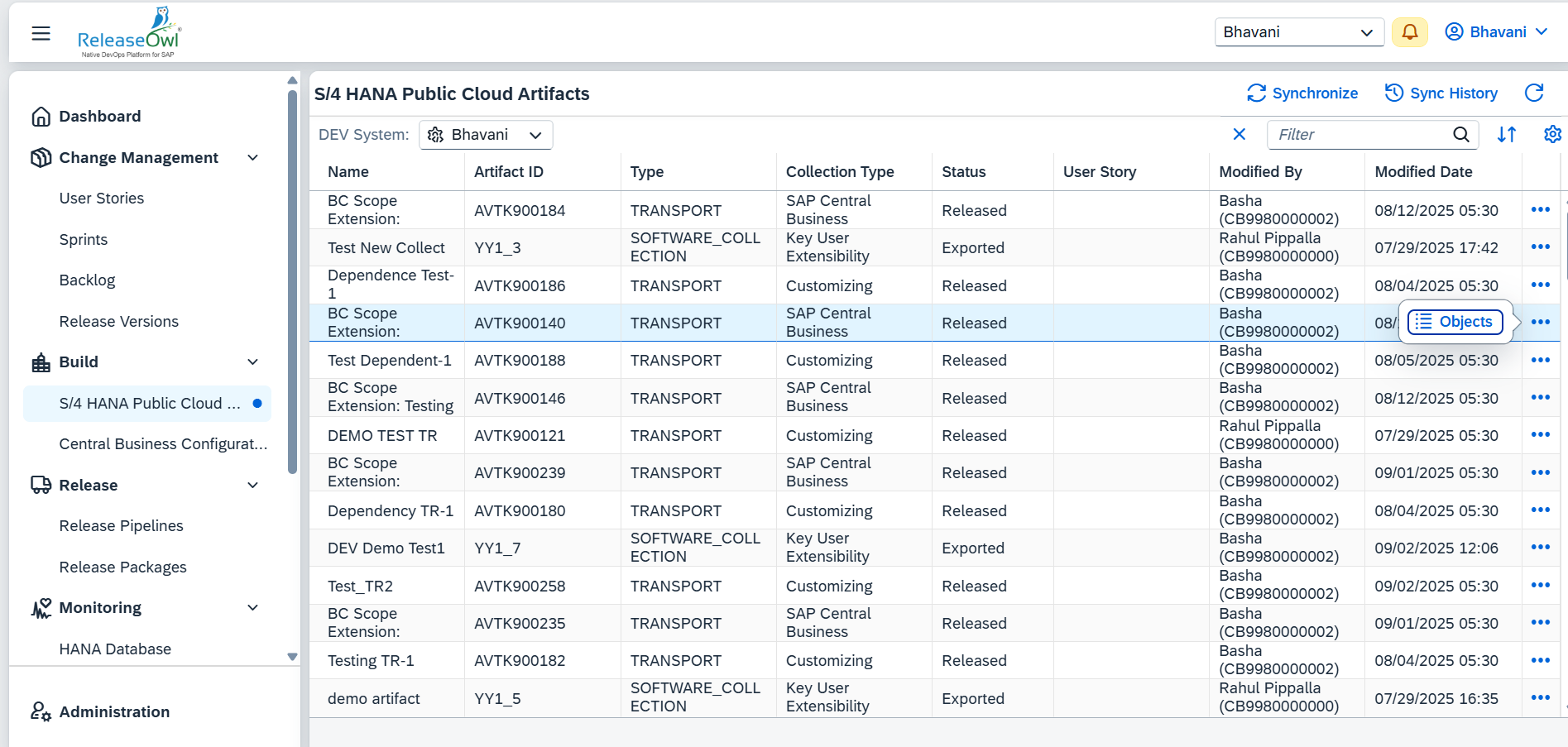
Transports in ReleaseOwl represent the technical changes captured from SAP S/4HANA Public Cloud systems that are ready to be deployed across environments as part of your software delivery process. These transports typically include configuration or extension objects that you have released in your SAP system.
#### Accessing Transports
* When you click on the **action button** for a transport, you can see the **Objects** button.
* Clicking the ***Objects*** button displays the list of transport objects included in the synchronized transport.
#### **Software collections**
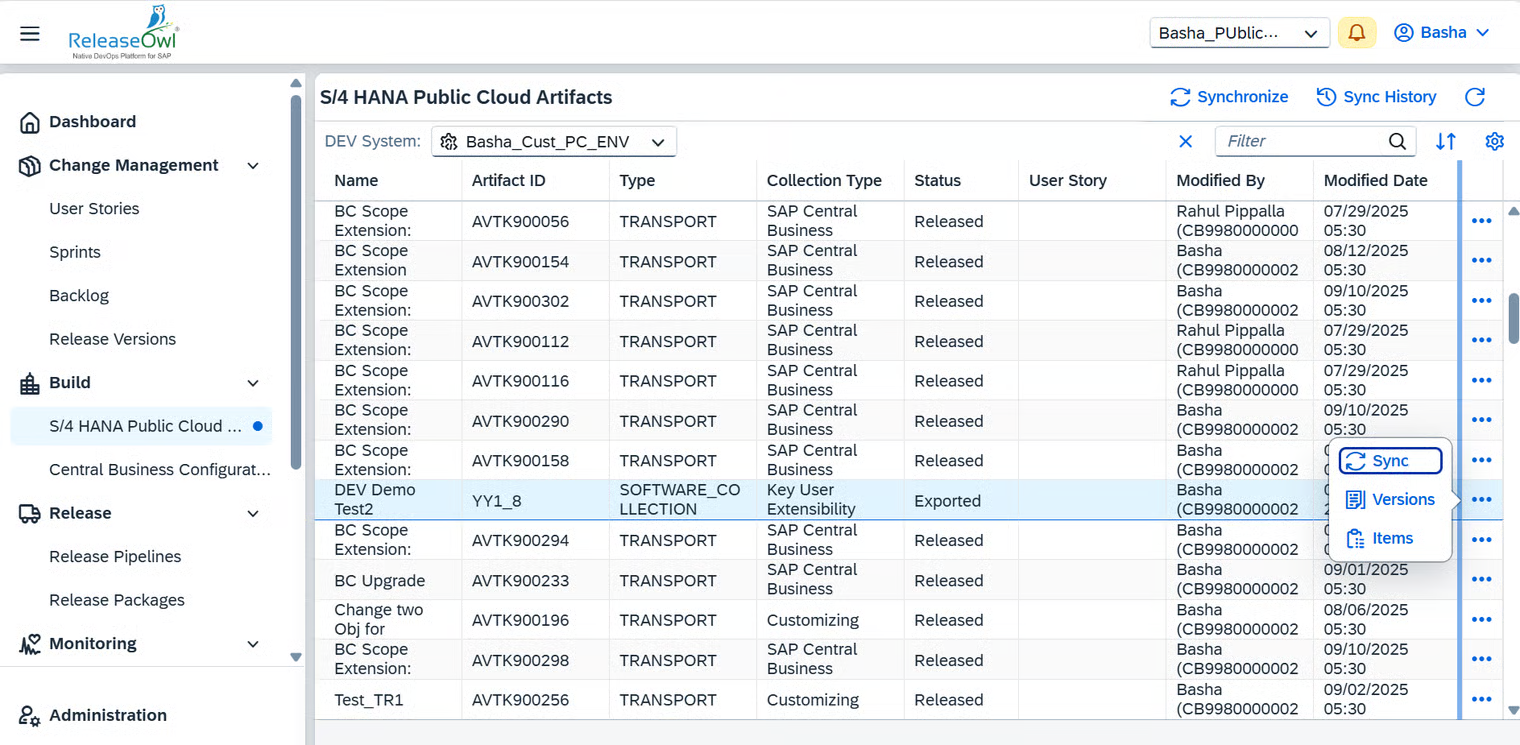
* When you click the **Action** button for a **Software Collection,** the available options are: Sync, Versions, and Items.
**Sync:** This option synchronizes the latest exported version of the software collection.
**Versions** : Displays the versions of the Software Collection, representing the history of changes made over time (e.g., Version 1, Version 2, etc.). Versions can also be **assigned to a User Story** or **unassigned** as needed for tracking and deployment purposes.
**Items** : Displays the list of items contained within the software collection.
### Creating a Release Pipeline
Release Pipelines in ReleaseOwl manage approvals, validations, deployments, automated tests, task assignments, and user story updates for SAP systems.
**1. Create a New Release Pipeline**
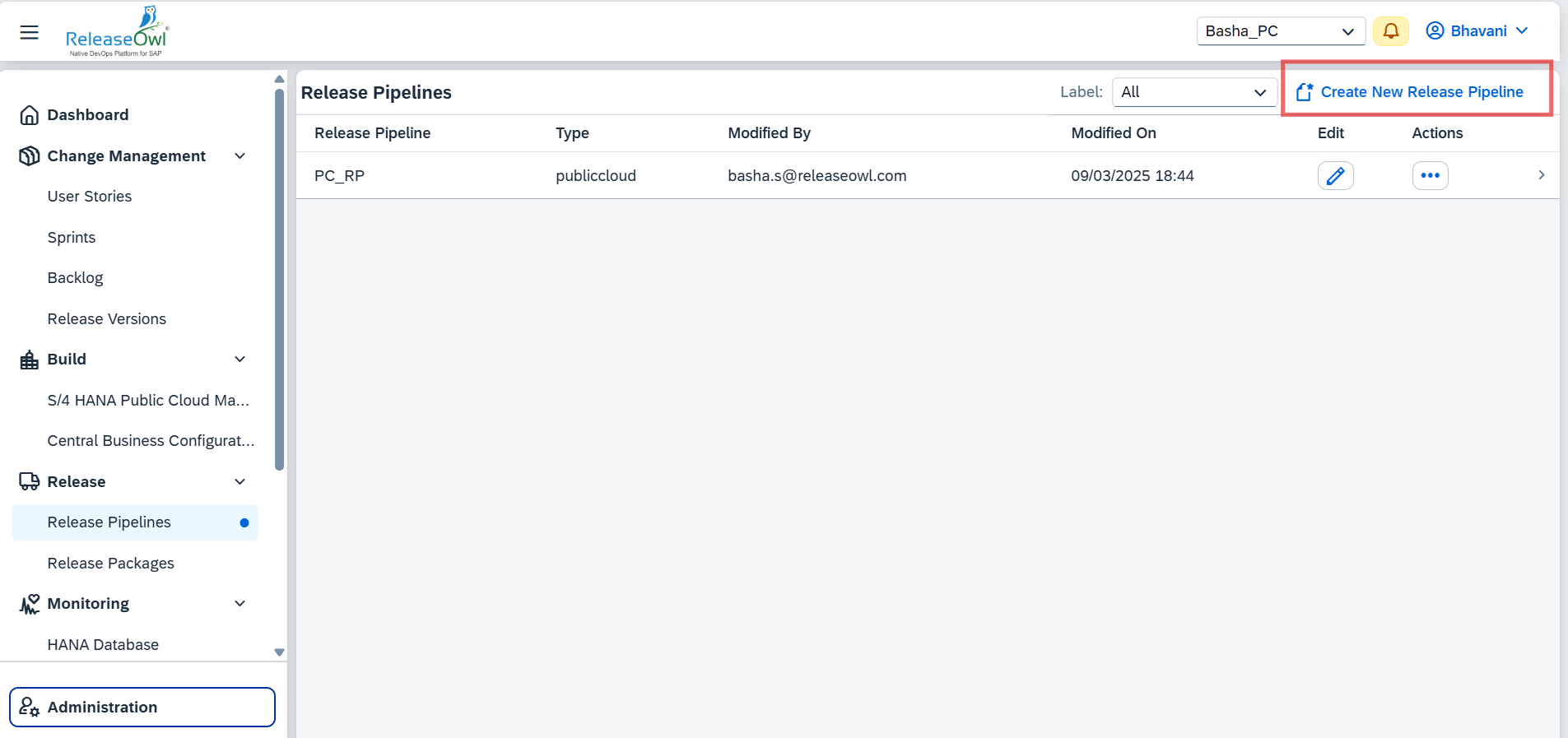
* Navigate to **Release Pipelines**.
* Click **Create New Release Pipeline**.
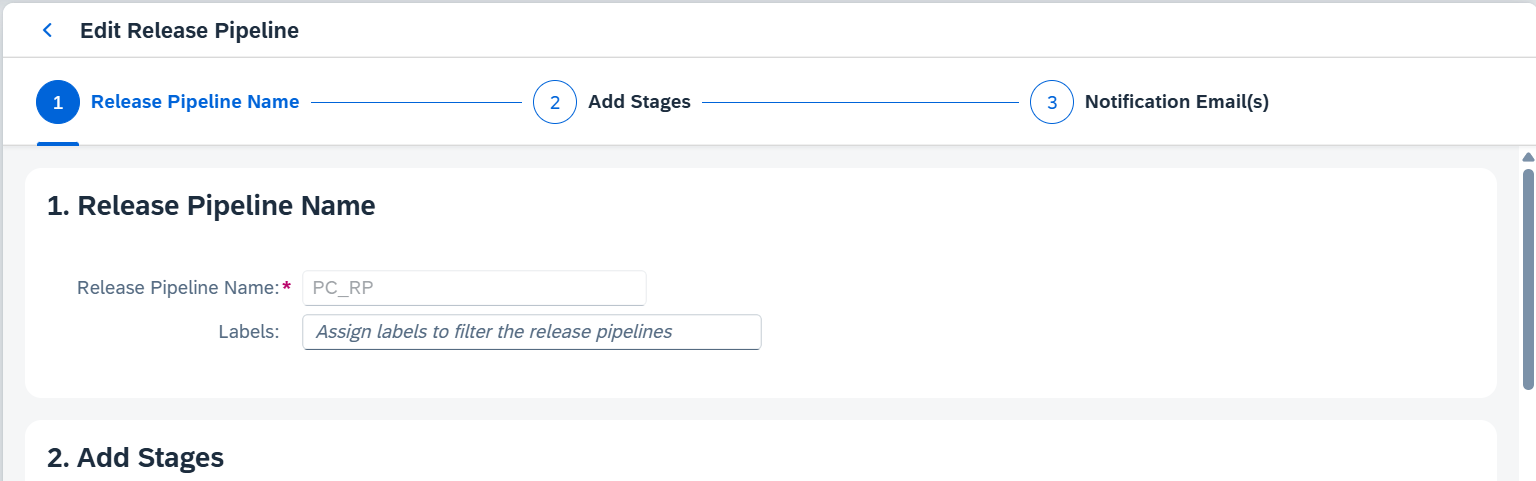
* Provide a **Pipeline Name**.
* Add stages (e.g., QA, Prod) and assign tasks to each stage.
### **Validation Task**
A **Validation Task** allows you to validate S/4HANA Public Cloud artifacts as part of a pipeline execution. It ensures that the artifacts meet required quality checks before being promoted further in the pipeline
1. In a **Task Stage**, click on the **Add** button and select **Validation**.
2. Fill in the required details:
* **Name**: Provide a meaningful name for the validation task.
* **Description**: Enter a message or note to be displayed to the task approver.
* **S/4HANA Public Cloud**: Select the **target environment** where the validation will be executed.
* **Quality Checks**: Enable this option to perform automated quality checks during validation.
* Includes **User Story Dependencies (Beta)**: This feature analyzes and validates dependent user stories to avoid conflicts or incomplete deployments.
* **Pipeline Execution**: Defines execution preferences for the validation task.
* **Continue on Failure**: If enabled, the pipeline continues execution even if the validation task fails.
### **Deployment Tasks**
A **Deployment Task** is used to deploy artifacts into the target **S/4HANA Public Cloud** environment as part of a pipeline stage.
#### **Steps to Configure a Deployment Task**
1. In a **Task Stage**, click the **Add** button and select **Deployment Task**.
2. Fill in the required details:
* **Name** : Enter a meaningful name for the deployment task.
* **Deploy Type** : Select **S/4HANA Public Cloud**.
* **Select the Environment** : Choose the target environment where the deployment should be executed.
#### **Notification Options**
* **Notify Users** : Sends an email notification to all users involved in the pipeline when the pipeline is triggered or when specific events occur. By selecting this you will see the following options:
* **Notify To** : Allows you to configure additional recipients for deployment notifications. Options include:
* **User:** Notify a specific user.
* **Role** : Notify all users assigned to a specific role.
* **Custom:** Notify based on a **custom component and role** defined in ReleaseOwl.
* **Notify Promotion User** → Sends an email notification to the user who initiated the promotion (from a user story or release package), regardless of whether the task succeeds or fails.
3. After entering the details, click **Save** to add the deployment task.
### **Promoting a User Story**
A **User Story** in ReleaseOwl is used to track, manage, and promote changes from **SAP S/4HANA Public Cloud** artifacts.
#### **Steps to Promote a User Story**
1. **Create a User Story**
* Navigate to **Change Management**.
* Open the created User Story and click **Edit**.
* Click the **+ Add** button to attach **S/4HANA Public Cloud artifacts** (such as Transports or Software Collections).
* After selecting the required artifacts, click **Save**.
2. **Promote the User Story**
* Once the artifacts are attached, clicking the Promote button triggers the Release Pipeline.
3. You will receive a message confirming that the promotion was successful, and you will be directed to the **Pipeline Activity** page, where you can see the **Validation Report** and **Deploy Logs**.