> For the complete documentation index, see [llms.txt](https://releaseowl.gitbook.io/releaseowl-docs/llms.txt). Markdown versions of documentation pages are available by appending `.md` to page URLs; this page is available as [Markdown](https://releaseowl.gitbook.io/releaseowl-docs/releaseowl-user-guide/sap-integration-suite/cpi-management/synchronize-cpi-artifacts.md).
# Synchronize CPI Artifacts
#### SAP CPI Management – Add Packages
1. Navigate to **Build → SAP CPI Management**.
2. Click **Add Packages** to synchronize packages from the registered **SAP Integration Suite** environment.
3. The system displays the list of available packages for selection.
4. Select the required packages and click **Add**.
5. After the packages are added, the following details are displayed:
* **Version**
* **Synced On**
* **Synced By**
* **Modified By**
* **Modified On**
#### Metadata Behavior
6. For supported artifact types, ReleaseOwl retrieves the **Modified By** and **Modified On** details directly from **SAP Integration Suite**. Supported artifact types include:
* **IFLOW**
* **ODATAAPIPROVIDER**
* **SOAPAPIPROVIDER**
* **RESTAPIPROVIDER**
7. For the following artifact types, **SAP Integration Suite** does not expose metadata details through its public APIs:
* **SCRIPT\_COLLECTION**
* **MESSAGE\_MAPPING**
* **VALUE\_MAPPING**
8. For these artifact types, ReleaseOwl generates the **Modified By** and **Modified On** details based on internal processing activity, indicating when the artifact was last processed or updated within the platform
### **Sync History**
Click **Sync History** to view the history of all synchronization activities performed for the **SAP CPI** packages, including previously synced packages and their corresponding sync details.
### **Sync Artifacts**
1. After a package is added, click the **Actions** button associated with the package.
2. Select **Sync Artifacts**.
3. Click **Sync Artifacts** to retrieve artifacts associated with the selected package from the registered **SAP Integration Suite** environment.
### **Remove From Project**
This option is used to remove a package from the project in **ReleaseOwl**. When you select this action, the package is automatically removed from the project and will no longer be available within the project scope.
### **Sort**
You can sort the artifacts as per your convenience. To sort them:
1. Click the **Sort icon**.
2. In the page displayed, choose an option and click **OK**.
### **Actions**
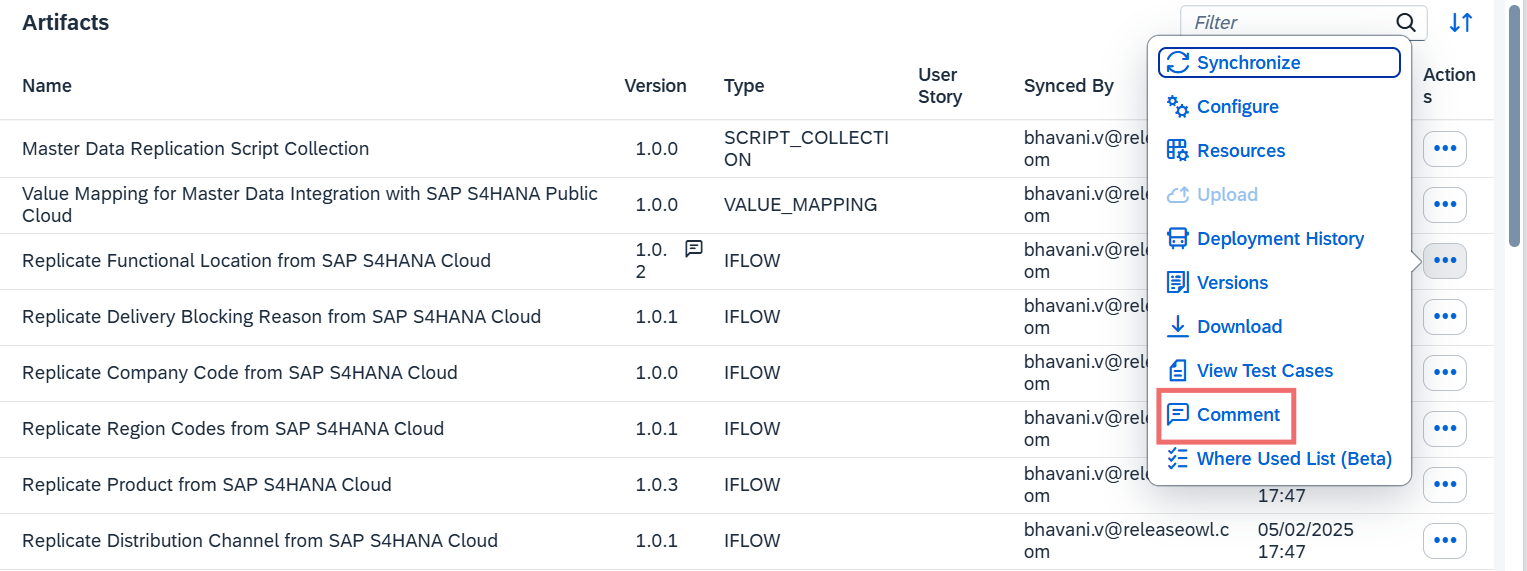
After a package is added to the project, you can view its artifacts and perform various actions on each artifact based on its type.
The available actions are described below:
* **Synchronize**\
Used to sync the latest changes of the artifact from the connected SAP Integration Suite environment into ReleaseOwl. This ensures that the artifact details in ReleaseOwl are up to date.
* **Configure**\
Used to configure artifact-specific settings required for deployment or execution.
* **Resources**\
Displays additional supporting information related to the artifact, such as its **type and size**. This helps users quickly understand the nature and storage details of the artifact within the project.
* **Deployment History**\
Displays the complete history of deployments for the selected artifact, including status and timestamps.
* **Versions**\
Shows all available versions of the artifact, allowing you to track changes over time.
* **Download**\
Allows you to download the artifact for offline use or reference.
* **Comment**\
Enables you to add or view comments related to the artifact for collaboration and tracking purposes.
### Synchronize
It is used to retrieve and update the latest artifacts from the connected SAP Integration Suite (CPI) environment into **ReleaseOwl**. This ensures that **ReleaseOwl** reflects the most recent changes made in the source system, including updates to artifact details such as version, configuration, and metadata.
### Configure
You can maintain configuration parameters for IFlows for each environment separately in ReleaseOwl. These will be updated accordingly during the deployment.
#### **To configure an artifact:**
1\. Go to the required artifact, click **Actions** and choose **Configure**.
2\. The following screen is displayed that will show various configuration parameters for the Integration Suite environments that are part of the landscape.
3\. No changes can be made to **Dev** environment.
4\. To make changes in any other environment, click the edit icon on the required name and make changes. Click **Save**.
### **Versions**
1\. To view the versions, go to the required artifact, click **Actions** and choose **Versions**.
2. The following screen is displayed showing the user different versions of the artifact.
#### **Compare Environments**
The **Compare Environments** option is used to compare an iFlow between two different environments. It helps you identify differences between:
* **Source Environment**: Contains the source version of the iFlow
* **Destination Environment**: Contains the active version of the iFlow
#### Steps:
1. Click **Compare Environments**
2. Select the **Source Environment**
3. Select the **Destination Environment**
4. Click **Submit**
5. The system will display the differences between the iFlow versions across the selected environments.
#### Compare Versions
The **Compare Versions** option is used to compare two different versions of the same iFlow within an environment.
**Steps:**
1. Click **Compare Versions**
2. Select the two iFlow versions you want to compare
3. Submit the selection
The system will show a side-by-side comparison highlighting the differences between the selected versions.
### Assign User Story
The **Assign User Story** option is used to link a specific version of an artifact (such as a configuration or integration flow) to a designated User Story.
This helps maintain traceability between development requirements and artifact versions.
**Steps:**
1. Click **Assign User Story**
2. The system will prompt a selection window
3. Select the required **User Story**
4. Confirm the selection
The current version of the artifact is associated with the selected User Story, creating a traceable link between the implementation and the requirement.
### Download
You can download the required artifact. To download:
1. Go to the required artifact. Click **Actions** and choose **Download**.
2. A zip file of the artifact is downloaded into your computer.
### Comment
To add or update a comment for a specific version of an artifact:
1. Navigate to the required artifact.
2. Click the **Actions** button.
3. Select **Comment** from the dropdown.
4. Click the **Edit** next to the comment.
5. Enter the comment text as needed.
6. Click **Save** to store the comment for the CPI artifact.
7. The **Comment** button is located adjacent to the **Version** field.
8. When clicked, it displays the **Created by**, **Created on**, **Modified by**, and **Modified on** information.
### Deployment History
The **Deployment History** option displays the complete history of a package’s deployment activities. It provides detailed tracking of each artifact deployed within the package.